If you’re searching for How to Print JAMB Admission Letter, you’re in the right place. Your JAMB admission letter is one of the most important documents you’ll need for screening, clearance, and final admission processes in most Nigerian institutions.
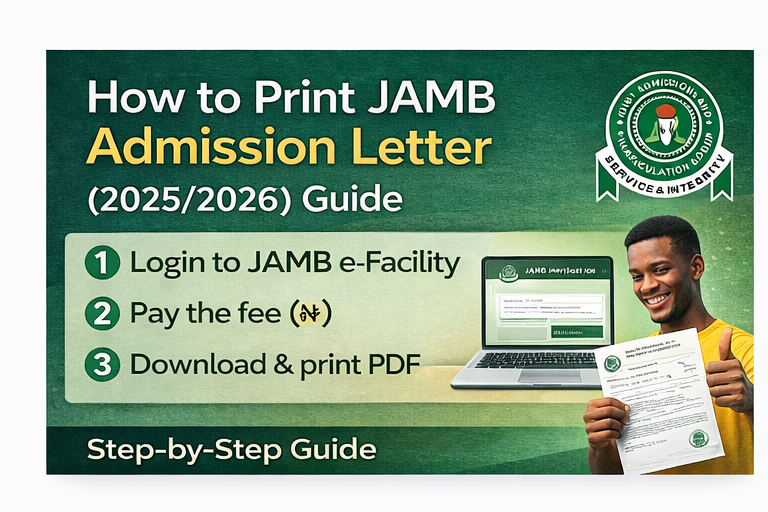
This guide explains how to print JAMB admission letter the correct way using the official JAMB e-Facility portal, how payment works, what to do if the page shows errors, and how to download a clean PDF you can print anytime.
How to Print JAMB Admission Letter
- Log in to JAMB e-Facility.
- Select Admission Letter Printing.
- Make payment (as required on the portal).
- Enter your details (where prompted) and click Print Admission Letter.
- Download the PDF and print.
Confirm You’ve Accepted Admission on CAPS
In many cases, you must first accept your admission on JAMB CAPS before you can successfully print your letter.
- If you haven’t checked your offer yet, read: How to Check JAMB Admission Status
- If you see “Admission Offered”, ensure you click Accept Admission on CAPS before printing.
Tip: If your school portal shows admission but CAPS does not, your admission letter may not be available yet. Keep checking CAPS until it updates.
What You Need to Print JAMB Admission Letter
- Your JAMB e-Facility email and password
- Your JAMB Registration Number (recommended to keep handy)
- Any device with internet (laptop is best)
- A printer OR a cyber café/CBT centre that can print PDFs
If you’ve forgotten your registration number, use this guide: Retrieve JAMB Registration Number.
How to Print JAMB Admission Letter on JAMB e-Facility (Recommended Method)
Step 1: Go to JAMB e-Facility and log in
Open the official portal:
- Enter your registered email address and password
- Click Login
Step 2: Select “Admission Letter Printing”
On your dashboard, locate the menu option for Admission Letter Printing (or similar wording like Print Admission Letter). Click it to continue.
Step 3: Generate Transaction ID and make payment
Once you open the service, the portal typically generates a Transaction ID and asks you to complete payment.
- Follow the on-screen payment instructions.
- After payment is confirmed, return to the same service page.
Step 4: Enter required details (if prompted)
Depending on your portal flow, you may be asked to select your exam year and/or confirm your JAMB registration number.
Step 5: Click “Print Admission Letter” and download PDF
- Click Print Admission Letter
- Download the file as PDF
- Print it immediately or save it for later
Important: Save the PDF to Google Drive or email it to yourself so you can reprint anytime without stress.
How Much Is JAMB Admission Letter Printing? (Official Cost)
JAMB lists an official fee for JAMB admission letter printing on its service pricing page. Depending on how you pay/where you print (e.g., CBT centre/cyber café), you may also see additional service charges for printing assistance.
Official pricing reference: JAMB Payment & Services (Official Fees)
Note: Always rely on what the portal displays at checkout, because fees and service charges can be updated.
How to Print JAMB Admission Letter at a CBT Centre or Cyber Café
If you don’t have a printer or your phone cannot download properly, you can print your admission letter at a CBT centre or cyber café.
What to take with you
- Your JAMB registration number
- Your e-Facility login (email + password)
- Or your downloaded PDF admission letter (if already saved)
Safety tip: If you log in on a public computer, always log out and avoid saving passwords in the browser.
Common Problems When Printing JAMB Admission Letter (And Fixes)
1) “You Have Not Been Offered Admission Yet”
- Confirm your CAPS status first: How to Check JAMB Admission Status
- If your school portal says admitted but CAPS does not, wait for CAPS update.
2) Payment successful but letter not opening
- Refresh the page and reopen the Admission Letter service.
- Log out and log in again.
- Try a different browser (Chrome recommended).
3) Page not loading / portal slow
- Try again during off-peak hours (early morning/late night).
- Use a stable network.
- Clear browser cache or use incognito mode.
4) Wrong login details / forgot password
- Use the Forgot Password option on e-Facility login page.
- Ensure you’re using the email you registered with.
After Printing: What to Do Next
After you successfully print your letter, these are smart next steps:
- Print 2–3 copies (one for school screening, one backup, one personal file).
- Save the PDF to Google Drive.
- Next guide (recommended): How to Check JAMB Matriculation List
FAQs
How do I print my JAMB admission letter from CAPS?
You can print your JAMB admission letter by logging into JAMB e-Facility, selecting Admission Letter Printing, completing payment (if required), and downloading the PDF.
Can I print JAMB admission letter on my phone?
Yes. Use Chrome and download the PDF. If the portal does not display well, enable “Desktop site” or use a laptop/cyber café.
Do I need to accept admission before printing the admission letter?
In many cases, yes. If you haven’t accepted admission on CAPS, the letter may not be available yet.
Why is my JAMB admission letter showing “Not offered admission yet”?
Your CAPS may not have updated, or your admission hasn’t been approved on JAMB CAPS yet. Keep checking CAPS and confirm your O’Level upload is complete.